Use bots
Bots add commands, polls, music and miniapps to your server. This guide is for Monky users and administrators. You do not need to program anything to follow these instructions.
Want to create a bot?
Start with Your first bot. The bot SDK documentation has feature guides, examples and a complete API reference.
What is a bot?
A bot is an external program that connects to the server and appears in the member list with a BOT badge. Its operator keeps that process running; linking a bot in Monky does not automatically install or host its program.
The bot publishes its own name and avatar. Server administrators control its registration and permissions, not its visual identity.
Two ways to add a bot
You must be the owner/an administrator or have Add and manage bots. Open server name → Server Settings → Bots.
1. Via URL (recommended)
Ask the operator for the manifest URL, not the GitHub page or the program's download URL.
- Paste it under Link bot by URL and click Link.
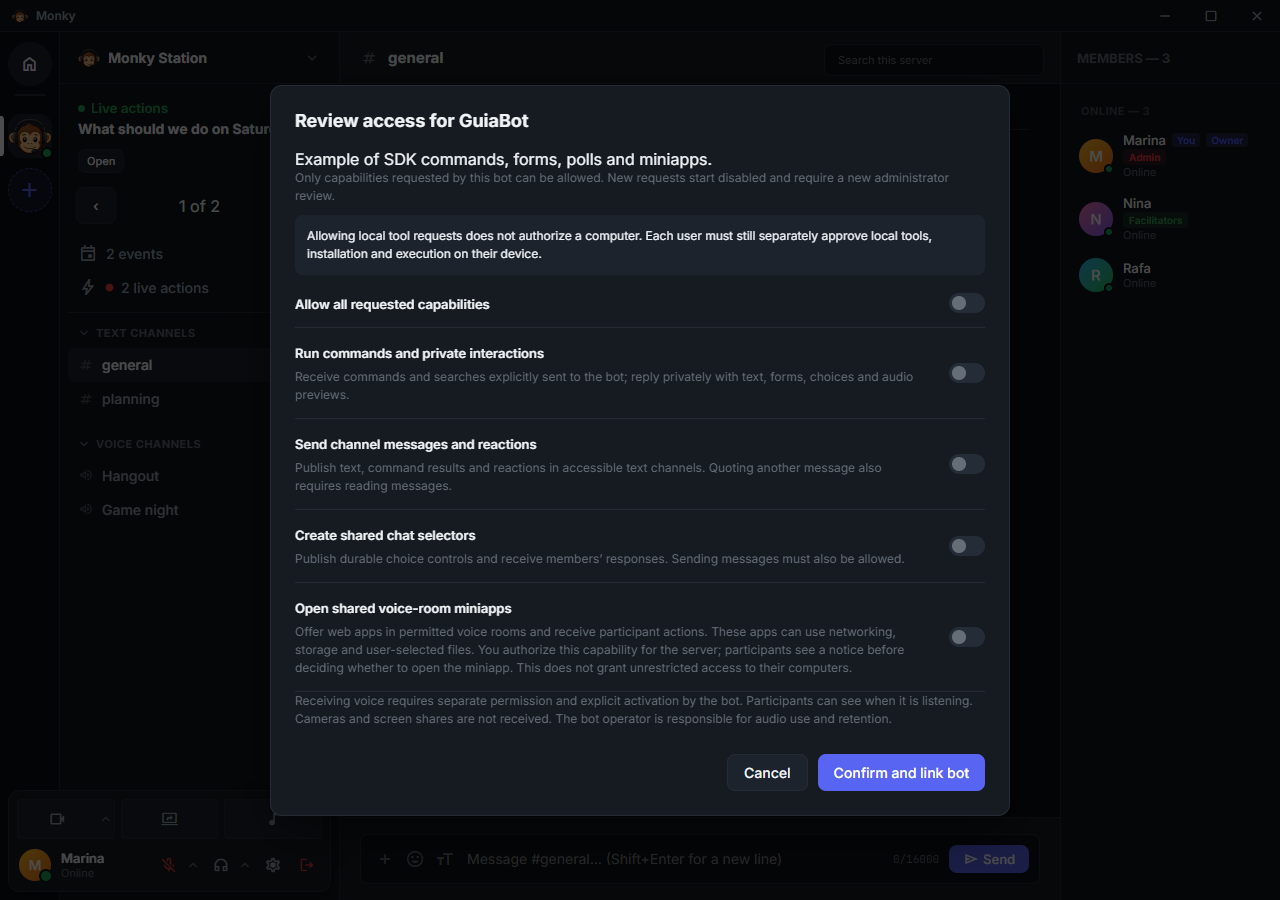
- Check the name, description and requested capabilities.
- Enable only the access you intend to grant. Switches start off.
- Click Confirm and link bot and wait for completion.
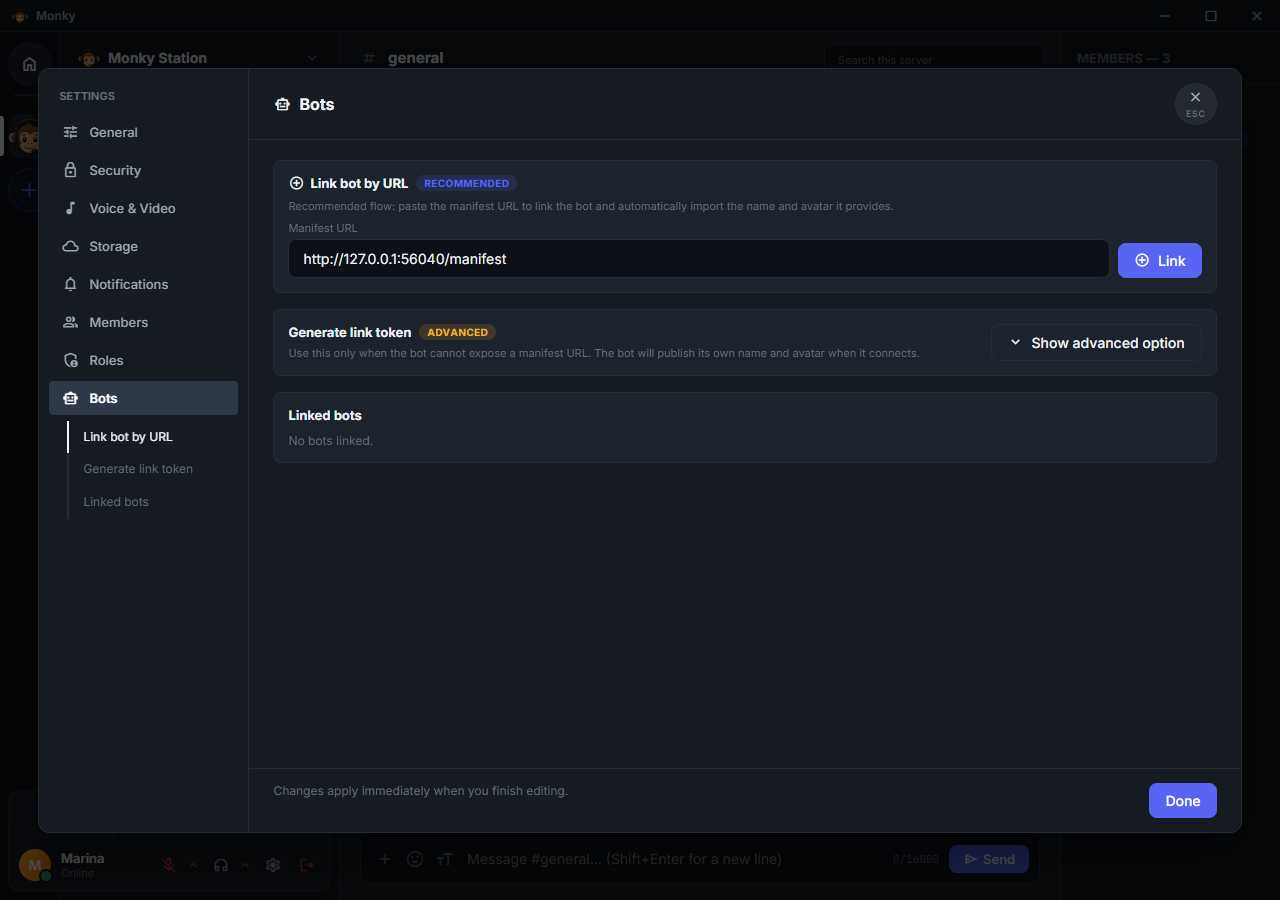
The server must reach the manifest, and the bot must connect back to the server. If one is on a VPS and the other on your computer, localhost does not connect those two machines. Operators can find details under Bot network requirements.
2. Manual token connection (advanced)
Use this when the bot does not expose a reachable manifest:
- Open Show advanced option and generate a registration/token.
- Copy the token displayed only once into the bot's setup.
- Wait for the process to connect and announce its identity and capabilities.
- Open that bot's settings, review Permissions and save.
The token authenticates the registration; it does not approve actions. A reservation without an identity waits for the connection in bot administration. Do not share the token or confuse it with the GitHub token used to download private releases.
Run a command
In a text channel, type /. The catalogue shows the responsible bot, command name and description. Command names can be localized to your preferred language.
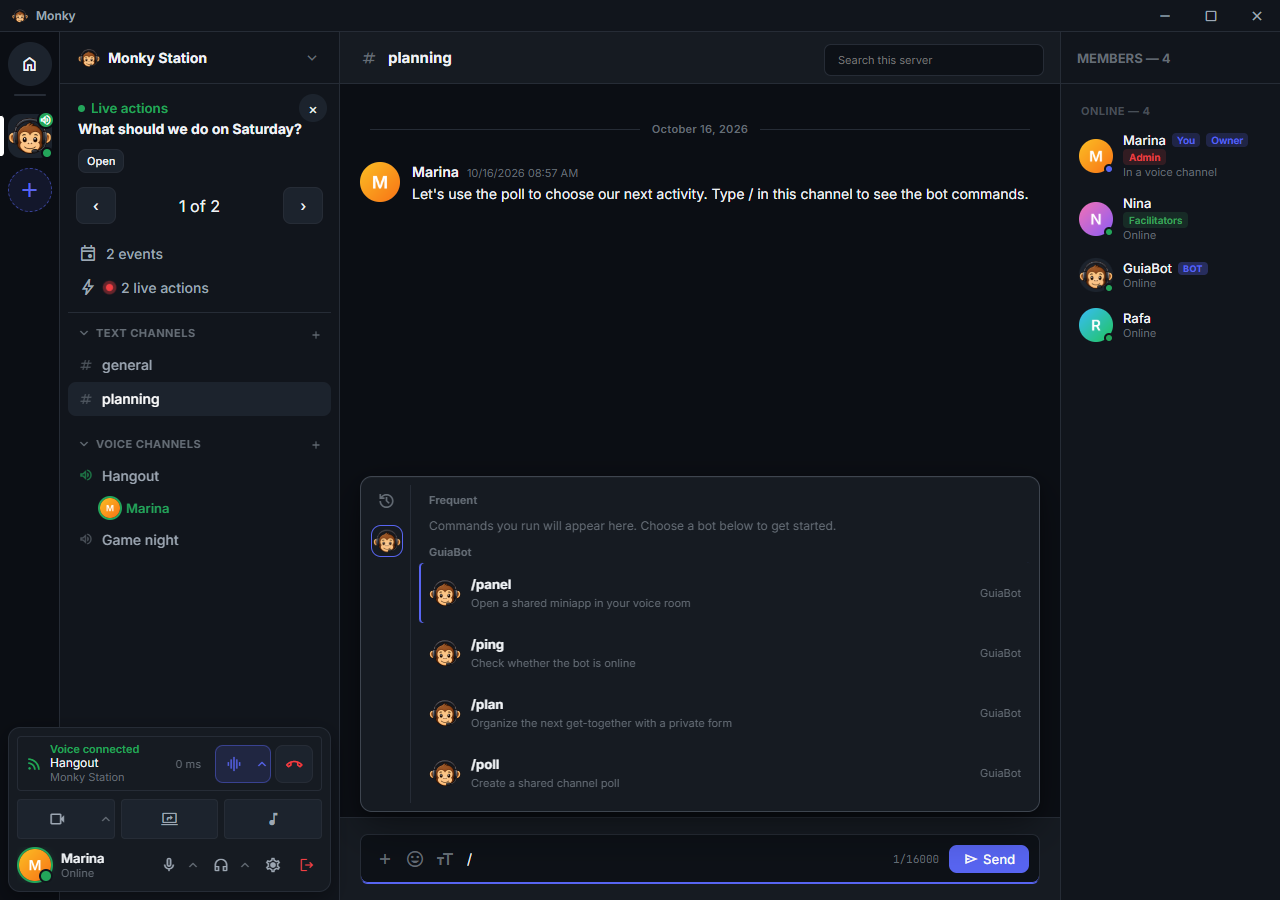
- Navigate with the arrow keys and confirm with a click or
Enter. - Space selects the highlighted command without immediately running it.
- Fill required fields; optional ones appear under +N.
- For searches with suggestions, select a valid result. Typing text alone does not confirm an autocomplete choice.
- Use the cancellation controls when you do not want to continue.
Commands without parameters or downloads can start as soon as you select them. In autocomplete, confirming the last required field can immediately run the command when there are no optional fields. With optional fields, the composer stays open so you can review and send.
Replies, forms and polls
A command's default reply is private: only the connection that ran the command sees it inside the chat. It does not enter public history. The bot can explicitly publish a result if it has permission.
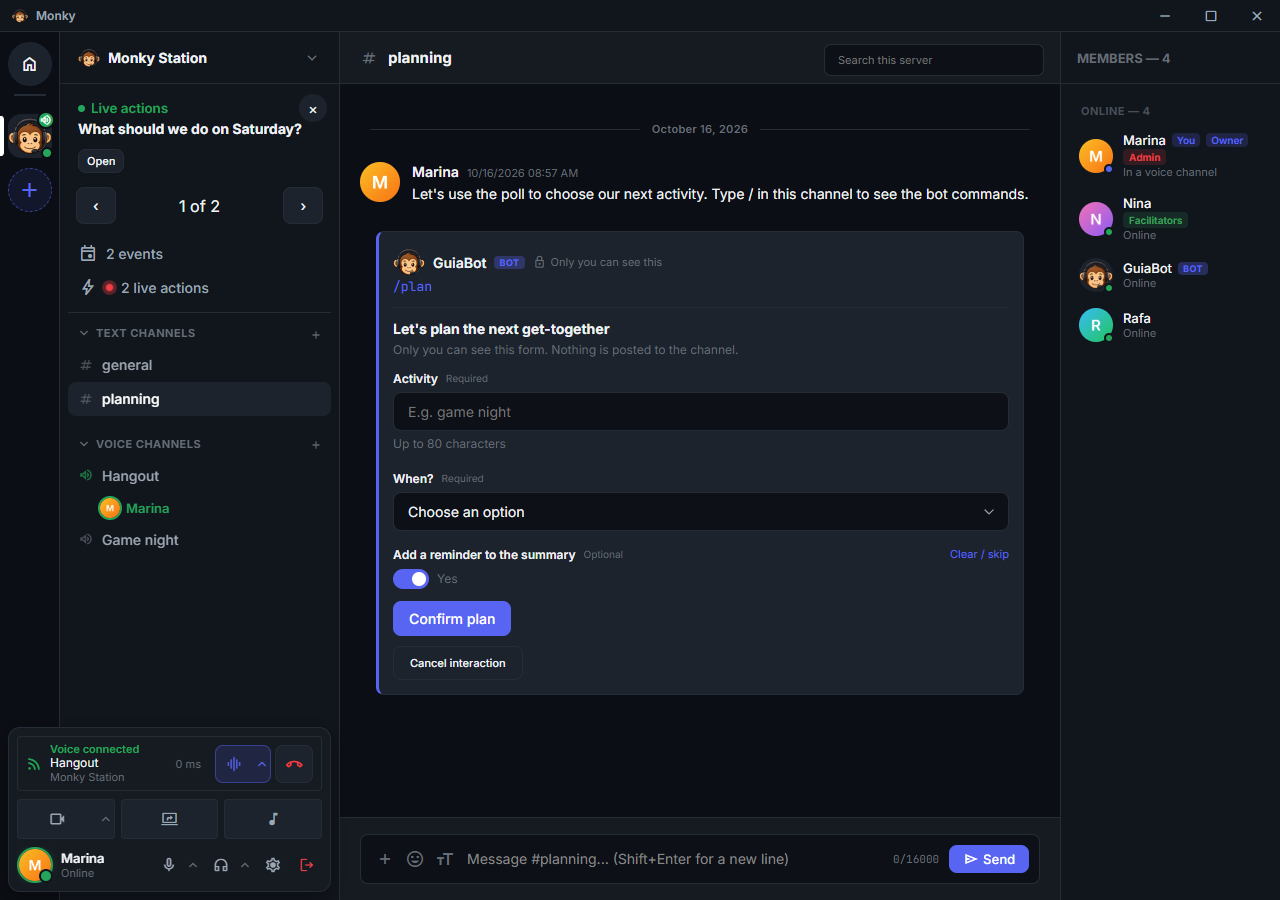
A public poll is different: it remains in the channel for authorized members to respond and can continue after you close the conversation. Its controls show the choices and state; duration, participant limits and vote changes depend on the poll's configuration.
Preferences and permissions
Right-click the bot in the member list or on its message, then open Bot settings. You can also access it from the server's bot list.
| Section | Who controls it | What changes |
|---|---|---|
| My preferences | You | This bot's language and personal preferences on this device |
| Behavior | Administrators or a role allowed to configure bots | Shared options provided by the bot itself on this server |
| Permissions | People allowed to manage bots | Capabilities the bot may perform on this server |
| Storage | People allowed to manage bots (on the server) and you (on this computer) | Space the bot takes on the server and on your computer, limits and deletion |
People who manage bots also see, at the top of the settings, the Manifest URL used to link the bot, with a button to copy it. Bots linked with a token, or before the server stored this information, show no recorded URL.
Follow Monky uses the app's language. An explicit choice applies only to this bot/server/identity in the current profile; it does not translate old messages or rename commands for everyone.
Reviewing capabilities ends that bot's previous work, including interactions and media. It may reconnect; do not use permission changes as an attempt to "restart" an ongoing song.
Who can use bots
Besides the bot's authorization, the person needs the role permission Use bot commands. The channel must keep Allow bot commands enabled. Turning it off blocks commands and interactions in that channel, including for administrators.
Bots do not receive human roles. Permission to publish audio or open a miniapp does not provide unrestricted access to private channels.
Tools on your computer
Server permission does not authorize your device. Some commands ask Monky to prepare local tools. The request explains their purpose, tools and space requirements; you can deny it, allow until disconnecting or remember authorization until you revoke it.
When you select the command, Checking local permissions and tools... shows preparation before its fields become available, even when permission has already been granted. Close the command to cancel; a failed check shows an error instead of leaving the loading indicator active.
In Settings → Bot tools, inspect installed tools, storage, cache, permissions and tasks. Removing a tool or revoking access stops affected work. Monky manages these installations; they do not authorize a bot to send arbitrary scripts.
Download to the Soundboard
First configure a directory in Settings → Soundboard. An authorized download shows its name, destination and source and never replaces an existing file. Listening to a preview does not save it to that directory or transmit audio to the call.
To confirm filenames again, open Bot settings → My preferences → Ask for a file name before downloading and save.
Miniapps in voice rooms
A bot can open a shared interactive screen in the room. The invitation and card appear in the voice stage, not as an external site opening by itself.
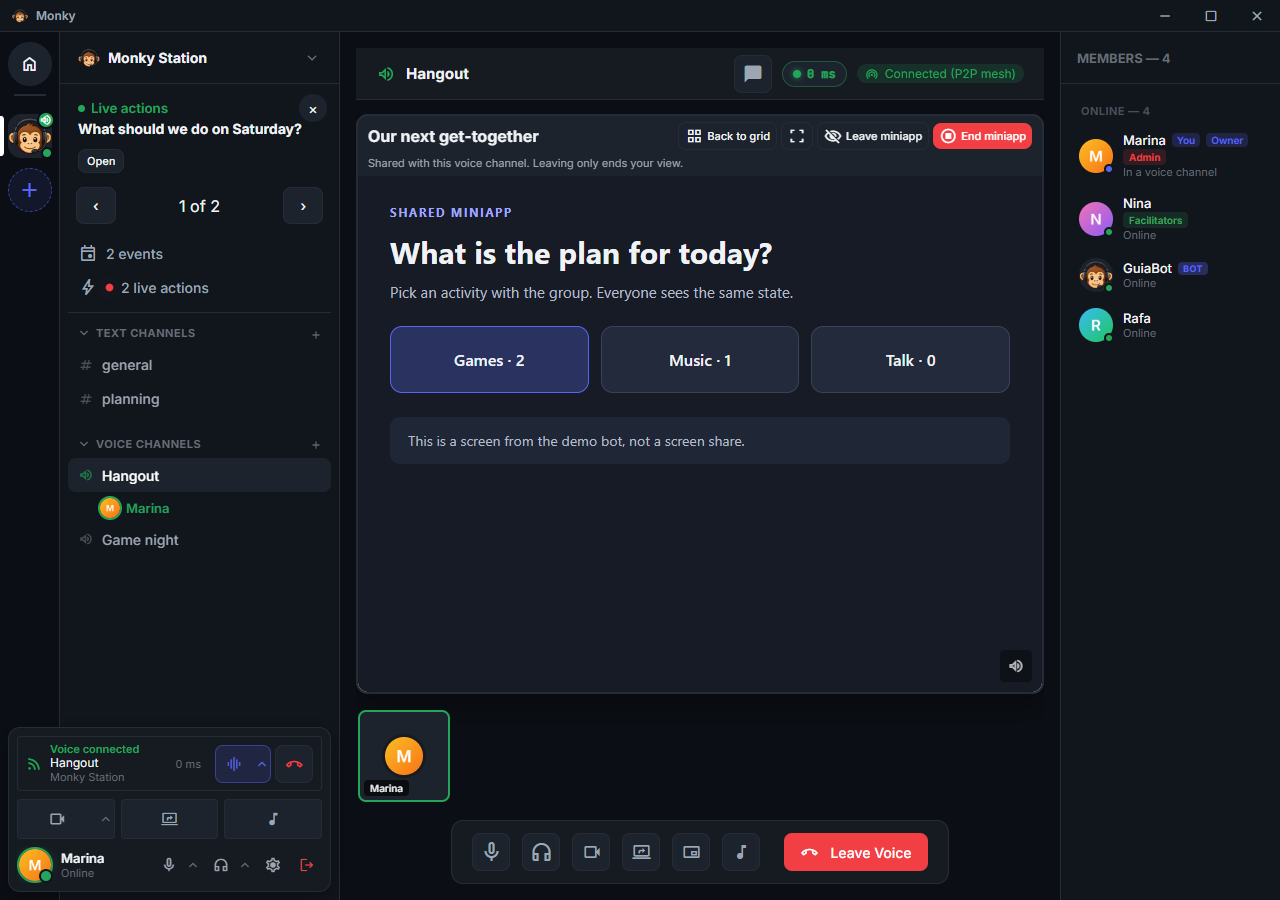
Open miniapp starts your local view. Leave miniapp closes only your view. End miniapp, available to its creator or an authorized administrator, ends that instance for everyone.
Before closing, the miniapp may ask you something, such as whether to save the game. Answer in the miniapp itself, or click Close now (or End now) to skip waiting. Leaving the room never waits for the miniapp.
You can browse Monky, such as a text channel, Home or another server, without closing the miniapp: while you are in the call, it stays open in the background, and a notice in the sidebar offers Back to miniapp to return to it on the stage. Its sound keeps playing at the volume you chose, and the miniapp itself may pause while you are away. Leaving the room closes it.
While the view is open, the card shows the same volume control as a screen share, in its bottom-right corner: hover the button (or reach it with Tab) to adjust from 0 to 200%, and click it to mute. Volume and mute apply to every miniapp of the same bot; the volume is saved on this computer and the mute lasts until you leave the room.
Data kept by the bot
Bots with the Store data on the server capability keep their own files on the server, such as game saves. Only people allowed to manage bots see, in the Storage tab of the bot settings, how much they take, set the limit (100 MB by default) and delete the data; everyone else sees only the data on their own computer there. Unlinking the bot deletes what it stored on the server.
If the bot may also ask to store data on computers, you choose Do not store, This session only or Always when opening a miniapp. If you do not allow it, the miniapp works normally and you can still download files manually. In Bot settings → Storage → On this computer, change the decision (Ask, Always or Never), the limit (50 MB by default) or delete the data. In Settings → Bot tools → Bot data on this computer, you see and delete what every bot kept here, including from servers and bots you no longer use. Monky never deletes this data remotely.
When the space on your computer is almost full, the miniapp card shows Storage almost full; once full, Storage full: autosaves paused. People allowed to manage bots also get this warning about the storage on the server. Click the warning to free space or raise the limit.
Bots that receive voice
A bot can receive microphones only if it requests Listen to voice-room microphones and an administrator approves it in Bot settings → Permissions. Publishing audio is a separate permission: music bots do not start listening automatically.
The participant list shows Listening to voices while authorized reception is active. Microphone and headphone icons use the administrative block badge when permission to transmit or listen, respectively, is missing. Having permission without activating reception does not show a listening notice.
Deafening the bot stops reception; muting your microphone prevents it from being received. Muting the bot only for yourself affects local playback, not its permission to listen. Cameras, screen sharing, Soundboard and private previews are outside this API.
The SDK does not record or transcribe conversations. Bot operators are responsible for disclosing any processing, external transmission or retention they implement. Read the voice guide before granting access.
Monky Bot (official bot)
MonkyBot provides utilities, reminders, giveaways, music and games. Its repository explains how to install the process; then link it and review permissions in Monky.
| Goal | Commands |
|---|---|
| Check availability and help | /ping, /ajuda |
| Utilities | /dado, /moeda, /8ball |
| Schedule a reminder or giveaway | /reminder, /giveaway |
| Search and queue music | /play |
| Inspect playback | /queue, /nowplaying |
| Control the queue | /pause, /resume, /skip, /remove, /clear |
| Stop or leave | /stop, /leave |
| Start a shared game | /jogo-da-velha |
Displayed names can vary by language. Use the catalogue to see localized names, parameters and descriptions for the installed version.
Join voice before using music commands. Each server has one queue; if the bot is already in another room, join that room to control playback. Searching, resolving and converting audio use the requester's client with consent; the bot's VPS does not automatically replace that device.
Spotify, playlists, albums and live streams are not supported by this integration. Only play content you are authorized to use and respect the provider's terms. Provider changes can prevent playback even when the call itself works.
When something goes wrong
| Symptom | What to check |
|---|---|
| Bot online, no commands | Declared/approved capabilities, your role and the channel switch. Do not reinstall or delete keys to resolve pending approval |
| Manifest cannot be opened | Running bot process, correct URL, port and firewalls in both directions |
| Invalid token or different identity | The operator must check the registration and preserve the original identity; do not regenerate keys on every restart |
| Command asks for tools again | Check whether authorization was temporary or revoked and whether preparation completed |
| Preview works, but music does not | Check voice membership, tools, provider access and the private media transport |
| Bot stops after an update | Check protocol compatibility, process logs and newly requested capabilities |
Unlinking revokes that registration's access. Linking again requires a new review. Updating a bot should not require deleting its identity or valid registrations for other servers.
Links from previous documentation versions
The developer sections now have their own pages:
- Marketplace mode (multi-server)
- Persistent registrations
- Network requirements
- Useful properties
- Events
- Security: token and identity
- Bot photos
- Automatic bot CLI and packaging
- Optional CLI updates
- Anatomy of a command
- Command language and individual preferences
- Guided parameters in chat
- Autocomplete before execution
- Private replies and publishing
- Forms and multi-step conversations
- Private selectors
- Public selectors and voting
- Reactions and emoji responses
- Per-bot settings on each server
- Permissions and channels
- Requested capabilities and consent
- Selections with audio previews
- Generate audio only when listening
- Authorized local downloads
- Bot voice
- Local capability execution
- SDK contracts
- Integrated checkout validation
- Shared programmable screens
- Creating your own bot
- Prerequisites
- SDK Installation
- Basic example
- Quick API reference
- BotClient
- BotOptions
- ServeOptions