
Manage a server
This guide covers what is shared by a server: channels, roles, moderation, bots and limits. Microphone, camera, language and personal preferences belong in App settings.
Open server settings
Click server name → Server Settings. You must be the owner, an administrator or have the corresponding permissions. Available controls depend on your access.
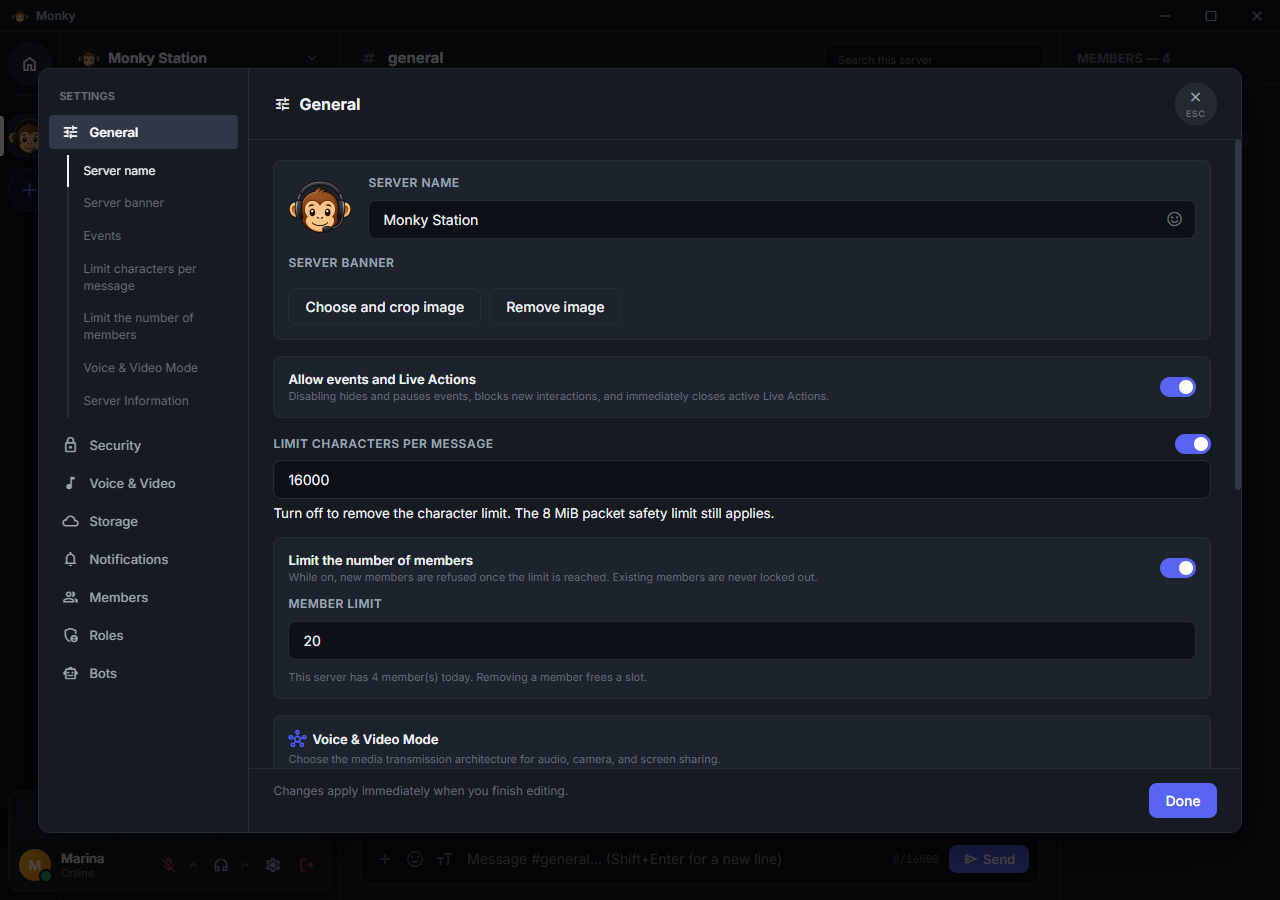
| Tab | Purpose |
|---|---|
| General | Name, image and banner, event activation, limits, voice mode and server process information |
| Security | Entry password: whether it is active, show, copy, change or remove it |
| Voice & Video | Soundboard access, recent audio cache, direct-message relay, the AFK channel and the integrated TURN relay |
| Storage | Attachment limits and usage |
| Notifications | Mentions, message editing and notices published in chat |
| Members | Inspect members and manage access according to your permissions |
| Roles | Organize permissions, hierarchy and membership |
| Bots | Link bots, review capabilities and unlink registrations |
Immediate application
Switches and selections apply immediately. Names and limits apply when you finish editing, leave the field or press Enter. A new password is typed twice and applies with Save password; removing it asks for confirmation. Show and Copy only work on a device that knows the password, such as the one that connected with it or hosts the server. Done only closes the window; it does not undo confirmed changes.
Closing is blocked while an operation is pending. A TURN download at 100% still needs startup confirmation. Errors identify what was not applied and let you correct it and try again.
Creating, installing, deleting and revoking still require explicit actions. If the connection or session changes, reopen the window to check current state.
Version and information
Under General → Server Information, the version belongs to the hosting server process, not the client you are using. Click to copy it. If unavailable, do not assume that it matches your app.
When a server restarts for an update, clients receive a specific notice, including when viewing another server. Wait, then reconnect. An update notice does not mean the new version has already finished starting.
Recent Soundboard audio
Under Voice & Video, an administrator can enable the Recent audio cache and retain between 1 and 100 plays. The option is available only while the server Soundboard is enabled and starts disabled on existing servers.
Each Soundboard audio clip occupies one history entry, including when different people use the exact same file. Using it again updates who played it and when, and moves the entry to the top, including audio heard as a local preview outside a call. The server removes the oldest clips first when the configured limit is reached and also applies a defensive 256 MB cap. Disabling the cache or the server Soundboard immediately deletes its history and stored files.
While enabled, every member can open Recent audio from the server-name menu. The list shows who played each clip, when it was played and its size; the play button provides a local-only preview without sending the clip to the call or creating another history entry. Download opens the operating system's safe save dialog. A toast confirms when the file is saved; cancelling the dialog does not show a success message.
Direct messages
Under Voice & Video, the Allow direct messages through this server switch controls whether updated clients may use this server only as a bridge for end-to-end encrypted DMs. The server does not store the content or queue for those messages.
AFK channel
Under Voice & Video, the AFK channel switch creates a voice channel for people who step away during a call. Once it is on, set the Channel name and the time in Move after being idle for: 1, 5, 15, 30 or 60 minutes, with 15 minutes by default.
Anyone who spends that long in a call without using the computer's keyboard or mouse and without speaking is moved to the AFK channel automatically. Sharing the screen, turning the camera on or watching a stream count as activity. Detection runs in each person's app, which must be up to date.
In the AFK channel, the server blocks every microphone, owners' and administrators' included. Nobody joins it on their own or can be moved into it manually. Someone with Move members can take a person out of it. Leaving the AFK channel by any route keeps the microphone muted, now through a personal mute that only that person can undo.
The AFK channel shows a moon icon in the list and can be dragged to any position or category, like any other channel. It cannot be deleted from the channel list: to remove it, turn the switch off, which asks for confirmation and deletes the channel along with its chat; anyone in it leaves the call.
Channels
Right-click an empty area of the channel list to Create Channel, Create category or Invite Friends. Creation options require Manage channels; there is no permanent create-category button in the list.
Use the + beside a category. Choose any channel type, enter a name and review the switches before creating it. Categories can mix text, voice and forums. Uncategorized channels appear directly in the list without an artificial category heading, and can sit anywhere: above, below or between categories.
To edit or delete, open the channel's More options menu. Deletion is destructive: check the name and its effect on history before confirming.
Forums
Choose Forum when creating a channel. Each post has a title, initial message and optional attachments; replies use normal chat, including editing, reactions, attachments and search. Topics always inherit their forum's access, including category and role changes. They do not appear as loose sidebar channels.
Search by title and sort by activity, newest or oldest. Rows show previews, thumbnails, replies and reactions. Authors can rename their posts; Manage channels permits pinning and locking replies through the post's context menu. New post expands the composer inline. Discussions open to the right while the list remains on the left; X closes only the discussion, preserving search and the post draft.
Events, banners and live actions
The Allow events and Live Actions switch under Server Settings → General controls both features and requires Manage server. Manage events controls event creation, editing, manual start/end, cancellation and deletion. Members do not receive this permission automatically; owners and administrators remain authorized. Disabling the switch hides and blocks both features. Event schedules remain paused across server restarts and their times move forward by the pause duration when re-enabled. Active Live Actions close immediately; ordinary polls that are not Live Actions remain open.
Under Events → Create event, select In a voice or text channel, choose the type, then use the searchable dropdown in the same form. Only channels of that type are listed. Somewhere else accepts a link or physical location as free text. The wizard visually replaces the list; steps slide without closing the window, and going back or cancelling restores the previous screen. Fill in the title, description, date, timezone, end time and up to five optional images; review before saving. When selecting multiple images, adjust all of them in one modal and move between them without losing each crop. The form carousel also lets you readjust its active image later. External locations require an end time. Daily, weekly and monthly recurrence preserves the local time in the selected timezone. Channel events without an end time must be ended manually. Date and time share a row, with an app-themed calendar. The time dropdown suggests 15-minute intervals while allowing any valid typed time without rounding. End time and time zone contains the additional scheduling options. View details opens every scheduled, active, or ended event. Each event's More options menu contains editing, ending, cancellation and deletion. Starting an event manually requires confirmation. For text-channel events, Open channel opens the corresponding conversation.
The interested members tab in event details lists names and avatars, including offline members, with Load more for larger lists. The event's access rules also protect this list.
More options offers Copy event link and Export to calendar (.ics) to every member who can view the event. Links do not include the server password: recipients confirm the connection and enter a password if needed. They can also paste links under Join with an invitation. After joining, the event opens on the correct server, including historical events. Links never grant access to private channels.
For recurring events, Export series to calendar (.ics) includes the full series, preserving its timezone and daily, weekly or monthly recurrence. Monthly dates that do not exist use that month's last day. Choose a file location and import the saved file into your calendar application. The file is a snapshot of the schedule; future changes in Monky are not automatically synchronized. Calendar applications can interpret nonexistent or repeated local times during daylight-saving transitions differently; review those occurrences after import.
The server starts and ends events automatically according to their schedule. Connected people marked Interested receive a start notice and sound, respecting app sound preferences. Private-room events are visible only to people with room access. The join button uses the event's voice room.
Events can be Public or Private. Private mode requires at least one member or role, and both lists are combined. Audience selection never replaces channel permissions: members must still be able to read the channel, and losing a selected role removes access immediately. The creator and members with Manage server retain management access. Event links never grant audience access.
The banner is under General, alongside the server name and photo. Manage server permits uploading a banner cropped to 1000 × 400. It occupies the top of the sidebar behind the server name. Cropping supports zoom, dragging, rotation, and reset. Events and Live Actions shortcuts show status and counts, while banners and carousels appear only in details.
Events and Live Actions use separate permissions. Manage events controls the calendar; Emit live actions allows people to create polls and forms, inspect responses, and close those interactions. Participants still need channel access. Bot Live Actions also require approval of the bot's live_actions capability; the initiator, the bot itself, or a manager with Emit live actions can close them.
Polls, forms, and bot Live Actions can also use a private member-and-role audience. A private poll is completely absent for non-audience members: its message, history, replies, search results, totals, and pagination do not reveal that it exists. The creator and Manage server moderators retain access, always subject to current channel read permission.
While a poll is open, its creator and people with Manage server can edit all of it, including audience, duration, voter limit, and anonymous votes. Turning the live action on during an edit still requires Emit live actions. Members who lose access to a private poll after an edit stop seeing it once the channel reloads.
Search messages
Use top-right search or Ctrl+F inside a chat to start with its current channel. The field opens shortcuts for choosing users and channels. More search options opens a filter modal with Clear filters, Cancel and Apply filters. Combine text, authors, channels, mentions, human/bot authors, image, video, audio, file, link and before/after/on-date filters. Whole-day dates use UTC. Results are paginated; clicking a result opens its historical message, including forum replies.
Search excludes inaccessible channels, deleted messages and undo backups. Access changes invalidate open results.
Compatibility
Mixed categories and forums require client and server protocol 31. Use both builds from this delivery for local validation; do not connect this client to an older server. The SDK preserves the bot floor for existing features, but live actions require a compatible server.
Categories and inherited access
Create category is in the empty channel area's right-click menu. Right-click a category name to edit its name and access, move it up/down, or delete it. Use Move to category in a channel's menu to move it, or drag channels and categories to move and reorder them. Channels and categories share one order in the list: while dragging, slots open above the categories and at the end of the list to keep a channel outside every category; dropping on a category's name puts the channel inside it. Move up/down in the menus follows the same order. Category arrows collapse their lists; the choice is remembered per server and identity on this device.
New servers start with Text channels and Voice channels (named in the app's selected language). Existing servers migrate to these two groups; private channels retain their access as individual overrides.
Edit channel and Edit category open settings with General and Permissions in the left sidebar. Changes apply when you click Save; closing or cancelling discards the draft.
New channels inherit all category rules, not just visibility. Under Permissions, controls are always editable without a customization step. An informational notice shows synchronization status. Rules differing from the category become local overrides when saved and reveal Sync with category, which asks for confirmation before replacing the draft. Matching rules use category synchronization, including when reverting an edit. Moving a synchronized channel adopts the destination's access; moving to Uncategorized preserves current effective access. Deleting a category does not delete channels or history: channels become uncategorized, in its place, and retain their permissions. Revoking access also hides channels; whoever is already in the call stays until they leave. Chat, attachment uploads and bots all enforce the same access.
Each permission for Everyone, a role or an individual member has three states: X — Deny, — — Inherit, and ✓ — Allow. Inherit neither grants nor denies access: it keeps the server-level result. Role rules override Everyone; between assigned roles, Deny wins, regardless of order. A member's own rule wins over their roles' rules, whether it allows or denies. Owners and administrators retain full access.
Use Add roles and members to search and select targets in the same dropdown used by private event audiences. Offline members can also be selected. Select a target in the list to edit or remove its rule; changes only take effect when saved.
For an announcements channel, deny Send messages for Everyone while allowing Read messages, then allow sending for the roles that may publish. A second assigned role explicitly denying sending still blocks it, unless the member has an individual rule allowing it. View channel is independent of Read messages: revoking only reading keeps the channel visible but removes history, search results and message notifications. Mute/deafen permissions remain server-wide because those restrictions apply to the member throughout the server. Manage channels, Move members, Manage events and Emit live actions are also server-wide permissions: they do not appear in the channel or category permission editor and cannot be granted or denied by local rules. Older rules containing them are ignored. Speak no longer blocks joining a voice channel; anyone with View channel can enter, but without Speak they are muted for microphone, soundboard and screen-share audio until that permission applies in the channel. Use soundboard can also be denied for a single channel; the soundboard then says the block comes from that channel.
View channel decides who finds a voice channel and joins it on their own. Someone with Move members who can reach a channel may still bring any member into it, even if that member cannot see it; bots are the exception and never enter private channels this way. Anyone inside a voice channel keeps seeing it, with its chat, until they leave, even after losing View channel meanwhile. Once they leave, they can only come back on their own if they can view it.
Private channel
The private switch denies View channel for Everyone. Allow that permission for roles or members that may enter; owners and administrators always retain access. Manage channels alone cannot bypass a local denial. It is not a separate server password. Review roles before sharing sensitive content. In the list, a private channel shows a padlock on the corner of its own icon.
User limit
In Edit Channel → General, voice channels have a User limit field. Leave it blank for no limit, which is the default, or enter a number from 1 to 99. With a limit, the channel list shows next to the name how many participants are in the room and the maximum, such as 02 | 06. Bots in the room count too.
When the room is full, nobody else joins on their own. Owners, administrators and anyone with Move members can still join or bring someone else in; while the limit is exceeded, the count turns red. Someone dropped by an unstable network can return to the room they were in, even when it is full. The AFK channel has no limit.
Bot commands in a channel
Allow bot commands controls commands, forms and buttons in that channel. When off, it also blocks administrators. This does not replace each bot's capability approval.
Roles and permissions
Everyone is fixed at the top without a color. It is every member's automatic base, not an assignable role: it has no membership, reordering, rename or delete actions. Its server-level permissions use on/off switches. Everyone opens the same editor as ordinary roles, with only the Permissions tab and no General or Members tabs.
In every other role, each permission is also an on/off switch. On grants the permission to members with the role; off neither grants nor removes it, so the member may still get it from Everyone or another role. A role cannot take away what Everyone allows: to limit something to a few members, turn it off for Everyone and on only for the roles that should have it. A new role starts with everything off, which means the same permissions as Everyone.
New servers do not create a Member role. Members without roles use Everyone. With several roles, permissions add up: a single role granting a permission is enough. The owner and administrators have full access. The original unmodified Member role is converted to Everyone; customized roles and roles used in private event/action audiences are preserved.
On update, roles that used Deny, Inherit and Allow go back to switches: Allow becomes on, and Inherit and Deny become off. Server role denials no longer exist, so members who only lost a permission because of a role get it back from Everyone. To block something in a specific place, use Deny in the channel or category permissions. On servers still using switches with the old rule, a permission only applied if every role had it; now one role is enough.
This change requires updated clients (protocol 35 or later). Older clients are asked to update before connecting so that cached content is also removed when reading permission is revoked.
The Members tab lists everyone registered on the server, including offline people. Disconnecting does not remove a person from the list; roles and access remain manageable according to your permissions. Bots are managed separately in the Bots tab.
Roles → Create role opens a dedicated dialog for its name, color and permissions. The three-dot menu → Edit role opens the same editor for an existing role instead of expanding the list. When creating one, Create role confirms the new role; use X or Esc to cancel. Changes to existing roles still apply immediately. A role can be automatically assigned to new members when that option is enabled.
The General tab contains name, color, auto-assignment and a separate Delete role section. Deletion is also available in the three-dot menu and always asks for confirmation before removing the role from all members.
The editor's Members tab lists only people who have the role, including offline members. Use Remove from role on a person's row to remove it. Add to members opens another searchable dialog containing only people who do not have the role; Add assigns it to the chosen person. The lists update after the server confirms each change, preserving the search. A toast confirms each completed addition or removal without loading text in the footer. Failures preserve the acknowledged state and allow a retry.
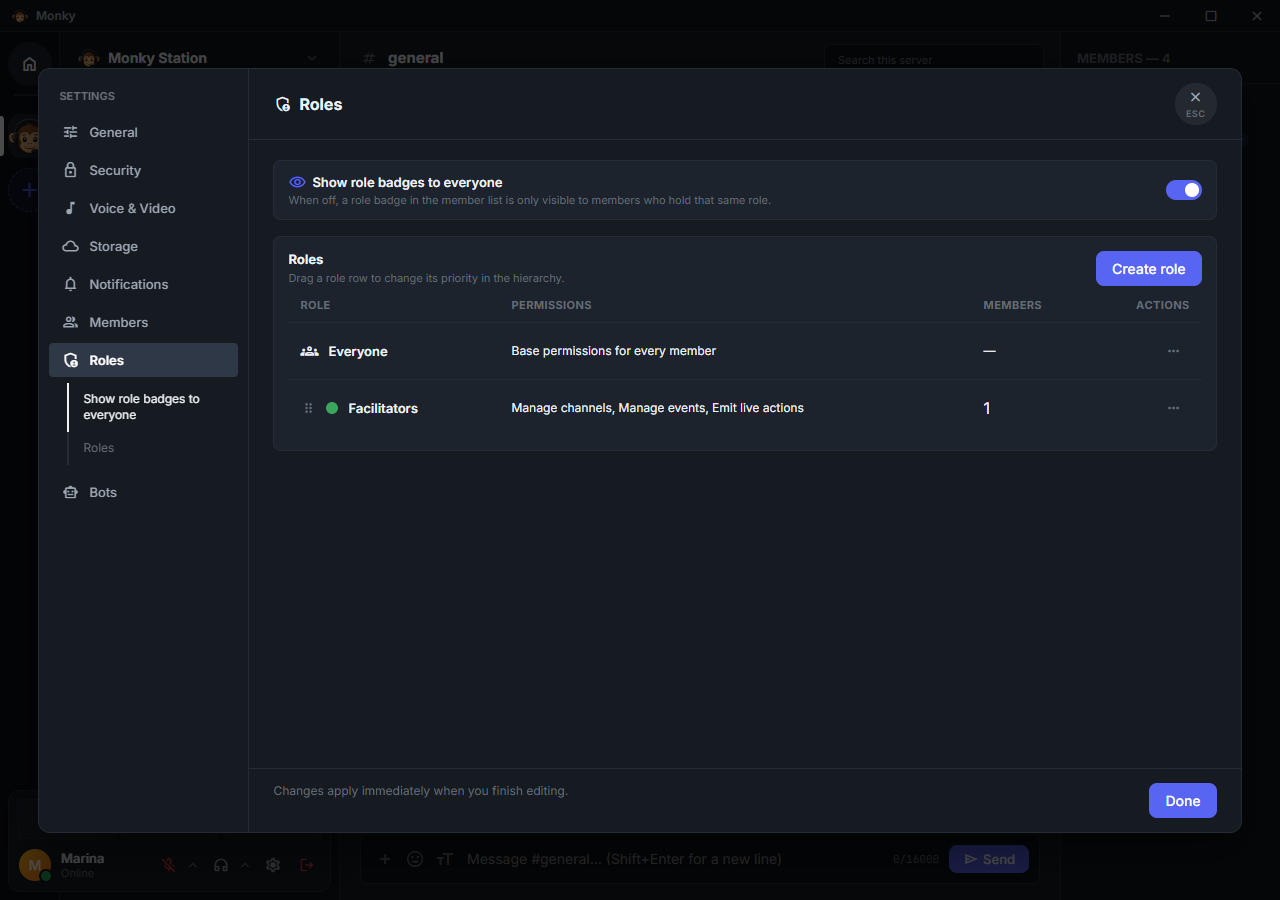
Drag to reorder roles. Hierarchy limits who may manage roles and members; do not treat a color or visual position as proof of permission. A member can have more than one role.
Bot-related permissions are separate:
- Use bot commands: allows commands and interactions.
- Add and manage bots: allows management of registrations and capabilities.
- Configure bot behavior: allows shared behavior changes.
Human member permissions are not assigned to bots as roles. Use their dedicated capability review instead.
Voice moderation
A member's right-click menu shows actions you are allowed to perform. Kicking from voice or moving to another channel requires an active voice connection. Restricting microphone/audio can also be done outside a call, with the corresponding permission.
An administrative restriction applies to that identity on the server, including its other devices. Reconnecting, changing channels or restarting does not remove it: an administrator must lift the restriction.
Personal mute and administrative restrictions are different. The former does not override the latter. Red restriction icons indicate administrative blocks; a person may still keep their own microphone muted after being unblocked.
The AFK channel blocks the microphone of anyone in it for as long as they stay there. On leaving, that block becomes a personal mute.
Audit log
Open server name › Audit log to see what was done on the server, newest first. Administrators have access; other members need the View audit log permission in a role. Manage server alone does not grant access, and bots never read the audit log. The audit log shows what happens in every channel, private ones included, so only grant the permission to people who may see that.
Each entry shows who acted, on what, when, and what changed, with the previous and the new value:
- Channels: creation, deletion and changes to name, user limit, category, privacy, bot commands, permissions and position, categories included. Dragging a channel records only that channel, not the ones it shifted.
- Roles: creation, deletion, name, color, permissions granted and removed, Everyone's included, and who received or lost each role.
- Members: first join, kicks and nickname changes.
- Voice: server mute and deafen, disconnecting from a room and moving someone, with the room they left and the one they entered.
- Server: changes under General, such as name, limits, voice mode and relay, plus the AFK channel and its idle time. Password and icon only show that they changed.
- Events and live: creating, editing, starting, ending, cancelling and deleting events; posting, updating and ending live actions, forms and featured polls. Ordinary polls only appear when someone changes another person's poll.
- Bots: links, installation, removal, access granted or removed, changed settings and commands used.
- Moderation: other people's messages deleted or restored, and forum posts pinned, locked, renamed or deleted by a moderator.
Type filters and the search by person, channel, role or bot can be combined. New entries appear at the top while the window is open, and Load more fetches older ones.
Each entry keeps the name the item had when the action happened, so it stays readable after the channel, role or member is gone. The audit log does not copy the text of deleted messages or what was typed into bot commands and settings, only the option names. Entries are kept for 90 days, up to 50,000 of them, and the oldest are discarded automatically. Bot commands, joins and nickname changes, which any member can repeat, use their own quota of 20,000 entries and at most 30 per person each minute, so a flood of them never erases the moderation history. Nobody can edit or delete entries from the app.
Losing the permission, disconnecting or switching servers closes the audit log at once. Servers that do not have the audit log yet show neither the menu nor the permission: update the server to use it.
Choose P2P or SFU
| Mode | Media path | Main consideration |
|---|---|---|
| P2P | Each participant sends directly to others, or through TURN when needed | Participants' upload bandwidth and connectivity between networks |
| SFU | Participants publish to the server, which forwards to viewers | Server CPU, bandwidth, announced IP and media ports |
Choose under General → Voice and Video Mode. Changing mode during a call reconfigures media; notify participants and check network conditions beforehand.
TURN relays P2P connections that cannot establish a direct path. SFU centralizes call forwarding. Neither replaces opening the server's connection port or makes a computer behind CGNAT publicly reachable without a suitable network route.
See TURN and VPS hosting for ports, limits and preparation. The capacity estimator is guidance, not a performance guarantee for every network or machine.
Operation and continuity
- Keep clients, servers and bots on compatible protocol versions.
- Preserve the database and bot identities; do not delete registrations as your first troubleshooting step.
- Check backups before migrations, deletions and hosting changes.
- When hosting through the app, closing/stopping that process affects all participants. For continuous operation, see the CLI and VPS guide.
To manage a bot's access and understand why it can be online without commands, continue with Use bots.